

If you're wondering how to list a rental on Apartments.com, the steps are simpler than you think. With a few details about the rental and eye-catching photos, you're well on your way to attracting prospective tenants. By taking advantage of Apartments.com free Rental Tools, you can easily list your property—and reach thousands of renters within minutes.
Watch the video below on how to list your property on Apartments.com, or view it directly on YouTube:
Why List on Apartments.com?
There are a lot of real estate sites out there, but Apartments.com Rental Tools is specifically tailored to help landlords through every step of property management, from filling your vacancy to renewing a lease. When you list your property with Apartments.com, you automatically get access to the following features:
- Exposure across the Apartments.com network
- Lease generation
- Rent comp reports
- Tenant screening
- Maintenance and expense management
Exposure across the Apartments.com network
When you list your property on Apartments.com, your rental is automatically populated on five additional websites. This helps you reach millions of monthly visitors across the country, broadening your potential market and bringing in more leads.
Lease generation
Apartments.com helps you create a personalized lease in minutes. Your lease agreement is customizable, so you can include specific house rules around parking, guests, and your pet policy. Leases created through Apartments.com are also compliant with state and local laws, so you don’t need to be a legal expert to create a compliant lease agreement.
Rent comp reports
Setting rent for your property can be difficult, and it can feel like guesswork. That’s where rent comps come in.
Apartments.com provides you with a free rent comp report that shows listed rents for similar rental properties in your area, allowing you to set your rent at a competitive price that’s appropriate for your local market. This helps you garner as much revenue from your rental property as possible without turning away renters with a too-high price tag.
Tenant screening
Once you list your rental on Apartments.com, you can begin to seamlessly accept and view rental applications from your account. But picking the right tenant can be hard, so we partner with TransUnion to make the tenant screening process easy.
TransUnion provides you with a ResidentScore® that summarizes each applicant’s reliability as a renter, helping you make informed decisions to minimize financial loss.
Maintenance and expense management
Once your perfect tenant has moved in, Apartments.com can help you manage your property’s expenses and maintenance. You can set up secure online payments and track your expenses related to your rental property all within your account, helping you track your income and keeping you organized for when tax season rolls around.
Apartments.com can also help improve your renter’s experience, too. Your tenants can submit maintenance requests online wherever and whenever they want, and you’ll get a notification sent straight to your email. All your maintenance and repair history will be in your dashboard to help you keep track of your expenses.
Listing Your Rental, Step-by-Step
The best part of listing with Apartments.com is that it’s easy to get started. Here’s how you can list your property in minutes and reach thousands of prospective renters.
Create an account
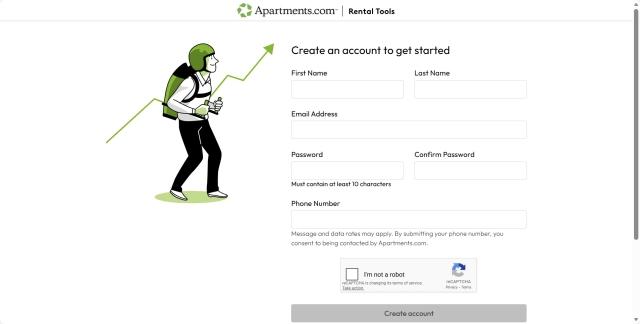
First, create an account with Apartments.com Rental Tools that will house all your property information.
Add your property
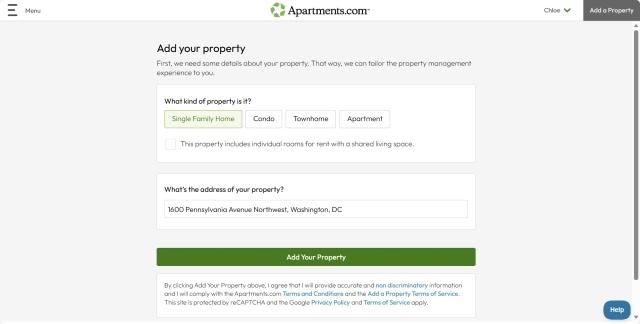
Once you create an account, select your property type, enter the address of your rental, and click “Add Your Property.”
Create your listing
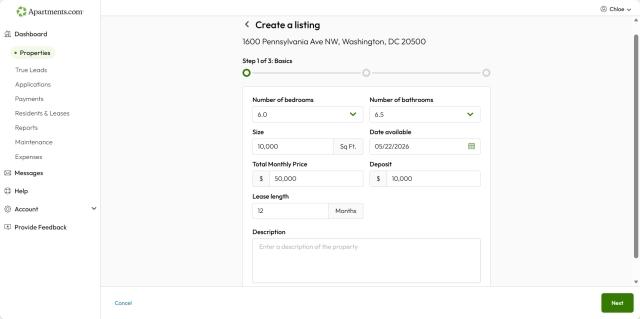
After you’ve created your account and set up two-factor authentication, you’ll see a few options for next steps. Select “Create a listing” and fill out basic information about your property like the square footage, number of bedrooms and bathrooms, and monthly rent. You can add a short description of your property if you’d like, but you can continue listing your property without a description if you’d prefer to add one later.
Upload media
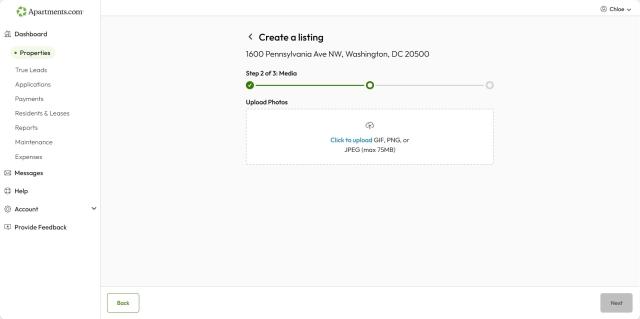
When you reach the next page of the listing creation process, you’ll be able to upload photos. Make sure you have high-quality photos of your rental saved to your device so you can easily add them to your listing. The order in which you select your photos is the order in which they’ll appear on your listing, so select your favorite photos first.
Here are some best practices to keep in mind when photographing your rental:
- Let in some natural lighting and make it bright
- Clean and stage your rental
- Stand in the corner of the room so you can get shots of the entire space
- Hold your camera at eye level to make photos feel natural
- Take photos in landscape, not portrait position
Review and publish your listing
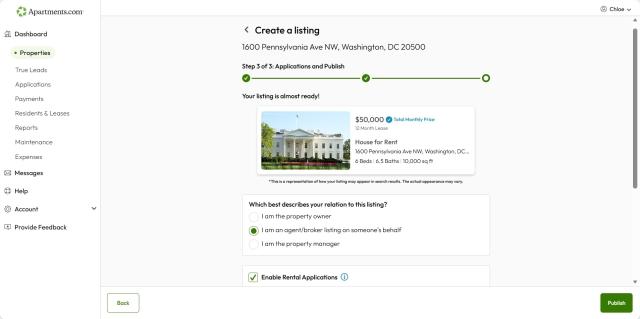
On the last page of the lease creation process, double-check that the information you entered is accurate and ready to be published. If you need to change something, click the “Back” button to go to the previous page.
Then, select your role—property owner, agent or broker, or property manager—to help Apartments.com understand your connection to the property. If you’d like to include an “Apply Now” button on your listing, check the “Enable Rental Applications” button. This will allow renters to submit applications directly from your listing instead of emailing you a request to apply.
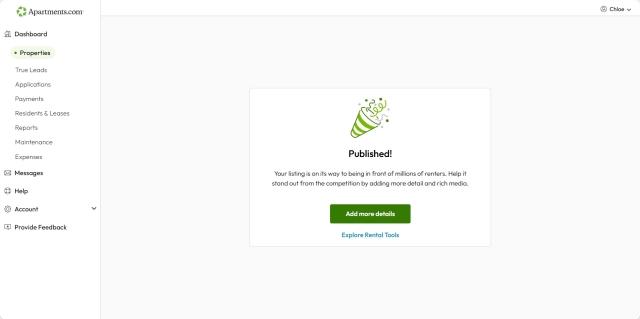
Once you’ve reviewed your listing information, click “Publish” to publish your listing on Apartments.com and five of our network sites!
Add screening criteria
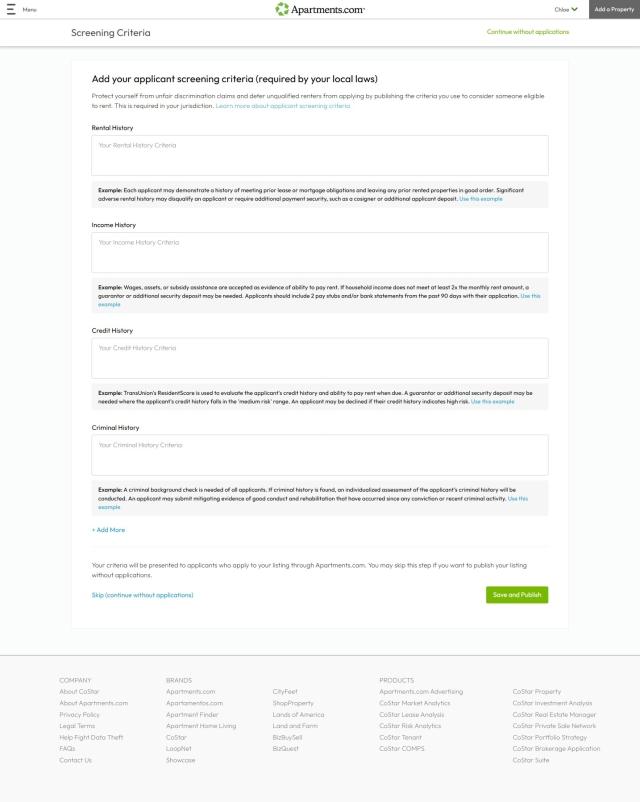
Depending on where your property is located, you may be prompted to add screening criteria like credit history or rental history requirements if you clicked "Enable Rental Applications." If you're not sure what to write, you can apply Apartments.com's examples by clicking "Use this example."
Add More Information
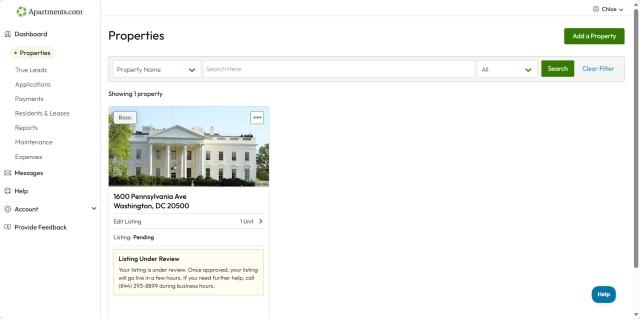
Now that your listing has been published with the basic information, you can edit your listing by visiting your Properties dashboard. Click the three dots on the photo of your property, then select “Edit Listing.” This will take you to an overview of your listing.
Amenities
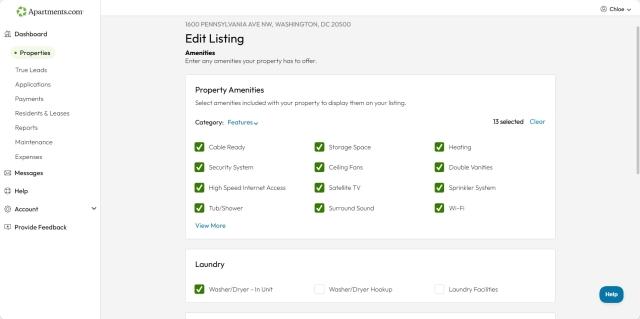
Once you’re on the “Edit Listing” page, scroll down to the “Amenities” section and click “Edit Section.” This will bring you to a page where you can select all the amenities and utilities included in your rental.
A property description
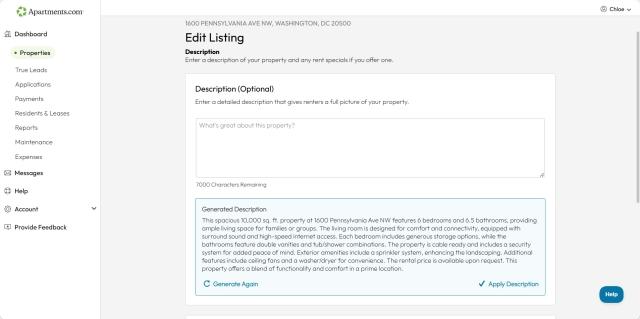
To add or edit your property description, scroll down to the “Description” section click “Edit Section.”
While a property description is optional, it can help renters learn more about your rental. Tell renters all about your property’s style, size, and key amenities and upgrades. Include information about the surrounding area, like public transit options, nearby schools, things to do, and the neighborhood atmosphere. If there’s something you love about your property or a specific feature you want to highlight, this is the space to do it!
If you don’t know where to start with a property description, our integrated AI tool can help you create descriptions based on the information and photos you’ve uploaded. Click the “Generate a Description” button below the text box, then select “Apply Description” once your description is ready, and you can even make further edits on it.
Rent specials
While you’re in the description editing section, you can also add any rent concessions you’re offering. Enter a short description of your rent special, like “One Month Free” or “Waived Application Fees,” then select the start and end dates for your rent special.
Rent concessions can be a great way to attract renters and fill vacant rentals. Analyze your budget and assess which rent concessions you can afford to offer.
Your contact information
Once you’ve input all the necessary information for your listing, enter your contact information and preferences so potential renters can reach out to you.
Apartments.com protects your privacy and does not show your contact information on your listing. If renters want to email you, they’ll be prompted with a popup that allows them to submit inquiries and does not show your email address. Your listing will also display a forwarding phone number that will direct calls to you.
Publish and Upgrade Your Listing

Once you’re finished editing your listing, click “Publish.” You’ll then have the option to upgrade your listing to Premium, which will give you access to Matterport 3D tours, videos, and more visibility across the Apartments.com Network. To upgrade your listing, click “Upgrade to Premium” and enter your billing information on the next page.
How to Optimize Your Rental Listing
It can be hard to stand out in a tough market. Here are some tips to help attract renters and get more leads.
1. Ensure accurate information
An accurate property description can build trust with renters and reduce vacancy rates by minimizing the likelihood of unhappy surprises. Make sure you avoid common mistakes like misrepresenting your rental as “luxury,” including incorrect information about the number of bedrooms and bathrooms, outdated information, and spelling or grammar issues.
2. Maximize keywords
Keywords are the words and short phrases renters use to describe what they want in a rental (for example: “pet-friendly,” “washer/dryer,” “utilities included,” “parking,” or “move-in ready”). When those words appear in your listing, it’s easier for your property to show up in the search results of those who are looking for those features.
With Apartments.com Ai, renters can use natural phrasing to conduct keyword searches for specific amenities and preferences. For example, instead of clicking preset filters to search for "apartments with a pool," renters can type or use voice instructions such as, "Show me apartments with a large pool and a cabana in Miami with rent less than $3,000 a month. I'd also like a hot tub. Which of these apartments are within walking distance to a grocery store?"
To capitalize on Apartments.com Ai, it’s important that you naturally include the most relevant amenities, policies, and location highlights in the rental property description. This helps your listing show up for the right keyword searches and reach renters who are already looking for what you offer. In other words, as you create your property description, consider the unique features your property offers.
Tip: If your rental overlooks the ocean, emphasize waterfront views. If the rental is in a quiet community, include that detail. Putting yourself in the shoes of a renter looking for a new place in the area can help you figure out what amenities and features to highlight.
3. Update your listing regularly
Updating your listing every two weeks can signal to renters that the information they’re seeing is accurate and up to date. Refresh the property description and mention any recent upgrades, upload any new photos you’ve taken, and make sure all the information in your listing is accurate.
FAQs
Is it free to list on Apartments.com?
Yes, it’s free to list a property on Apartments.com. A basic listing gives you standard visibility and access to Apartments.com’s Rental Tools suite. However, upgrading your listing to Premium gives you 30 days of higher visibility and the ability to upload videos and Matterport 3D Tours. Pricing for Premium depends on your property type.
What else can I do with Apartments.com Rental Tools?
Apartments.com Rental Tools has you covered through the entire lease cycle.
Once you list a property on Apartments.com, you can:
- Accept applications and screen tenants
- Message tenants and prospective renters
- Create a state-specific lease
- Collect rent online
- Track rental expenses
- Receive and track maintenance requests
How do I add fees to my listing?
When you list a property on Apartments.com with Rental Tools, you’ll only be able to add a parking fee by editing your listing and scrolling down to the “Parking” section of the “Amenities” page. Your listing will default to our all-in pricing structure with a “Total Monthly Price” badge, so make sure you factor expenses like utilities and maintenance into your advertised rent price if you don’t require tenants to set up utilities independently.
How do I upgrade to Premium on Apartments.com?
A Premium listing is an upgraded, paid listing option designed to give your property more visibility in order to help you connect with more renters compared to a free listing.
To upgrade your free listing, log into your Apartments.com account and navigate to “Properties.” Click the three dots on the property you want to upgrade, then select “Edit Listing.” Make any necessary changes, then click “Publish.”
You’ll be presented with a page prompting you with the option to upgrade to Premium. Click the “Upgrade to Premium” button, then enter your billing information to check out. Once you’ve upgraded a property, your listing will appear larger and higher in search results, and you’ll be able to upload videos and Matterport 3D tours.
A Premium listing lasts for 30 days from the date of purchase, but it can be reactivated after expiration. If you have questions about upgrading to Premium, please reach out to our customer service team at support@apartments.com.
This article was originally published by Helen Ann Wells on May 2, 2024 and has since been updated.


