
Being a landlord means juggling many responsibilities across listings, applicants, tenants, and finances. Each area generates its own set of data and metrics that landlords track. Just as Rental Tools consolidates property management into one platform, Rental Tools centralizes all these streams into a single dashboard.
Key Takeaways
- The Rental Tools Dashboard consolidates critical landlord metrics into one customizable view, including payments, listing performance, and more.
- Visual tools like diverging bar charts and line graphs help landlords quickly analyze performance.
- Customization features such as drag-and-drop, resizing, and widget removal allow landlords to tailor the dashboard to suit their workflow.
What is the Rental Manager Tools Dashboard?
The Rental Tools Dashboard gives landlords an overview of their portfolio, highlighting key metrics and next steps. It condenses important information into one place for ease of access and serves as a hub for navigating the platform and taking care of tasks.
Watch the video on how to use your Rental Tools Dashboard down below or on YouTube:
Navigating Your Dashboard: Main Features
The dashboard provides a summary of your portfolio, with helpful info and actions. To help you make the most of the dashboard, this guide walks you through each widget and how to use it.
Financial overview
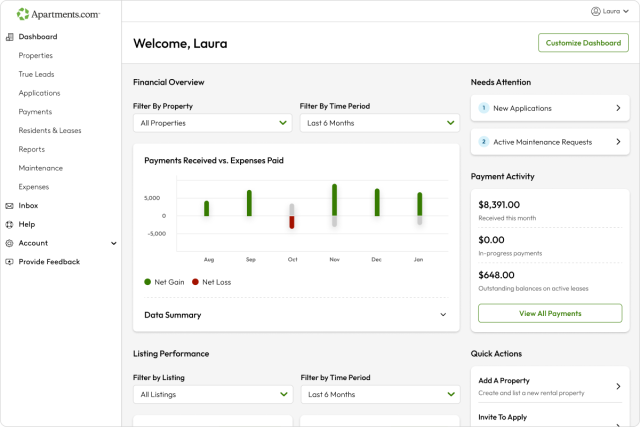
The financial overview shows a diverging bar chart of your payments received vs. expenses paid and whether the overall month was a net gain or loss. When you hover over the bar, a pop-up will appear with more detailed information, including payments in, expenses out, and the net amount.
Below is a data summary of all the numbers. Broken down into a month-by-month table, it’s easy to compare the payments in, expenses out, and net amount. Finally, the total amount over the selected time period for each category is displayed.
Needs attention
The needs attention widget shows a snapshot of tasks that require action. From active maintenance requests to new messages and new applications, time-sensitive tasks are highlighted in one place, so nothing slips through the cracks. Simply click on the task to be redirected to the applicable page.
Ending soon
Stay ahead of the game with the ending soon widget. Anything that is ending soon, whether that is a lease or listing, is noted here. Clear next steps with links to the necessary page appear beside each ending item so you can easily take care of it.
Payments activity
This widget zeroes in on payments to give you a clear view of this month’s activity. You’ll not only see the total amount, but also any in-progress payments and any outstanding balances on active leases. For a more detailed deep dive, click on the “Payments” button, which will take you to the payments page.
Listing performance
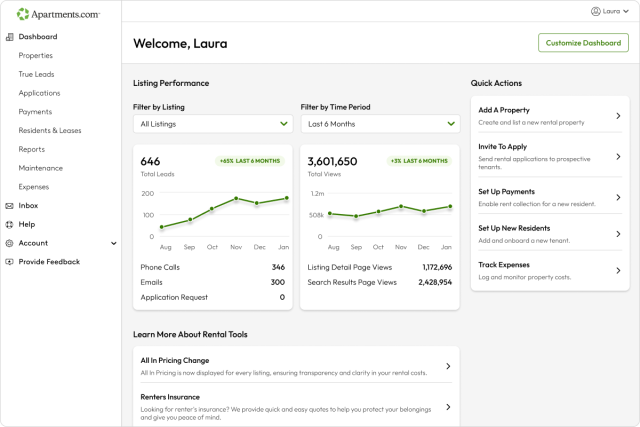
Gauge the performance of your listing with this widget. The information is divided into two line charts, one for leads and one for views, and gives a month-by-month breakdown of your portfolio’s visibility. A listing detail page view occurs when someone clicks into your listing, while a search results page view means your listing appeared in search results.
The leads chart displays the amount of leads each month so you can see whether you are trending up or down. To see the number for each lead type (phone, emails, and application requests), hover over each month, or you can see the total amount below the chart. The views chart is similarly laid out but focuses on the number of views your listings recieve. You can see the total amount of views or divide it into listing page views and search results page views.
Filtering Your View
Filtering by listing and time period gives you the data you need to manage and track the performance of your property. This allows you to compare over the course of the year and by specific property, so you can get an overview of your entire portfolio or narrow it down.
Introducing Dashboard Customization
Tailor your dashboard to focus on the information you want to see. By choosing which widgets appear and how they’re arranged, you can create a dashboard that supports how you work.
How to Customize Your Dashboard
To get started, hit the “Customize Dashboard” button in the upper right part of the page (across from the welcome message).
Drag-and-drop widgets
Put what you want to see where you want to see it with drag-and-drop widgets. With a simple mouse click or tap of your finger, you can reorder your widgets to put the most used ones first.
Resize widgets
Resizing widgets allows you to put smaller ones side-by-side or have an expanded view of the widget. Whether you want to get more detail or compress your overview, resizing your widgets allows you to do so.
Remove widgets
Focus on the most relevant parts of your portfolio by removing any widgets that you don’t want to see. If you want to revert any changes, you can easily reset your dashboard to the default layout.
Tips for Getting the Most Out of Your Dashboard
Your dashboard provides tons of valuable insights, here are some tips on how to get the most out of your dashboard.
Check your dashboard regularly
Integrate checking your dashboard into your daily routine. That way you can see anything that needs your attention, what is upcoming, and track the performance of your portfolio.
Filter by time period to view trends
See spikes and dips over time when you filter by time period. This can show any seasonal trends or provide an overview of your portfolio’s activity over time.
Make a note of ending soon notifications
When you see ending soon notifications, save the date in your calendar or notes so you don’t miss anything. While the notification will stay on your dashboard, having it in multiple locations will make sure you don’t overlook anything.
Be willing to shake things up
If you find yourself getting lost in your dashboard, don’t be afraid to shake things up. Customize your dashboard to give you the information you need. If you don’t like your changes, you can always reset it to the default.
Explore Everything That Rental Tools Has to Offer
Rental Tools is designed for landlords, from the easy-to-use dashboard to built-in features. From listing and marketing your property to screening renters and managing applications, everything lives in one place. Instead of juggling multiple systems, you can handle your responsibilities on a single platform to save time and keep you organized.
FAQ
How does the Rental Tools Dashboard benefit landlords?
The Rental Tools Dashboard benefits landlords by providing an overview of their portfolio. It focuses on key metrics, like listing performance and finances, in addition to providing next steps. All of this is in one place, so landlords don’t have to go through a maze of pages to get the information they need.
Can I customize the dashboard?
Yes, you can customize the dashboard by clicking the “Customize Dashboard” button in the upper right corner of the page. From there, you can drag and drop widgets, resize them, or even delete them.


