
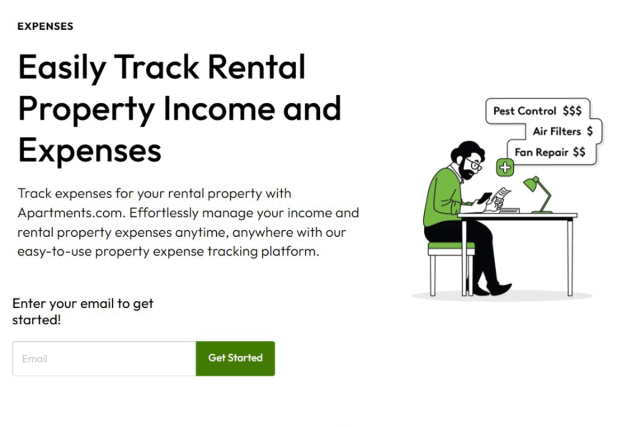
Property management can be a great source of income, but keeping track of your finances can be hard. Luckily, Apartments.com Rental Tools helps landlords track expenses related to rental properties to create a yearly budget, maximize rental property ROI, and streamline tax season.
Watch the video on tracking your expenses on Apartments.com down below or on YouTube.
Find Your Expense Dashboard
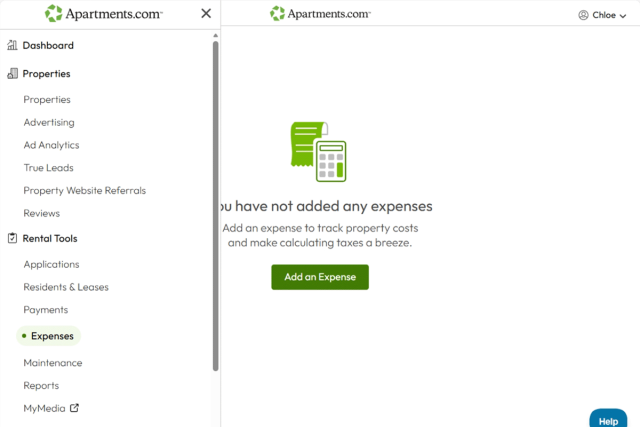
First, navigate to the Expenses page by clicking the menu icon in the top left corner, then scrolling down to “Expenses” under “Rental Tools.” Select “Expenses.” This will bring you to a page where you can add expenses.
Add an Expense
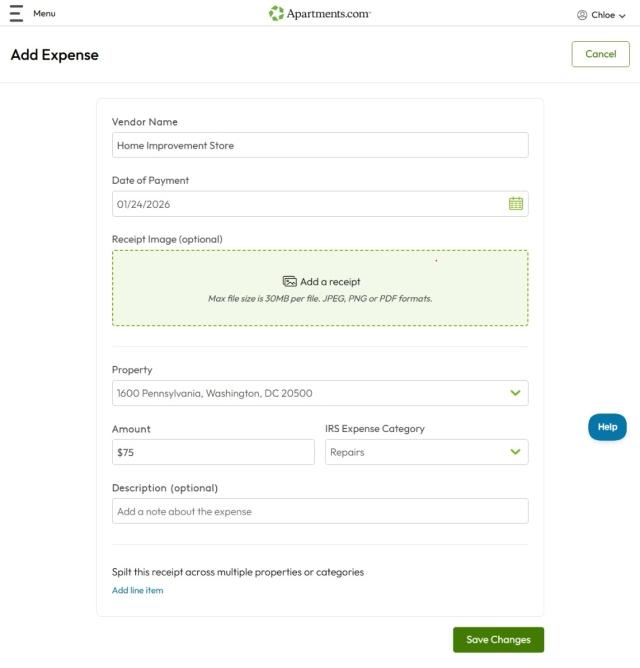
When you click the green “Add an Expense” button, you’ll be directed to a page where you can fill out the details of an expense. Input the store, contractor, or service where you submitted a payment, then add the amount you spent. In the optional “Description” section, add any notes for later.
Assign to a tax category
Assign the expense to a tax category to make filing your taxes easier by clicking on the drop-down menu under “IRS Expense Category” and selecting a category, like repairs, depreciation, or insurance. The categories available in the drop-down menu are the same as the categories in Schedule E (Form 1040), simplifying tax season and helping you maximize your tax return.
Upload receipts
Keep everything in one spot by uploading photos or PDFs of receipts.
For paper receipts, take a photo or scan it, then save the file to the device from which you’re accessing Apartments.com Rental Tools. For digital receipts, take a screenshot or download the receipt as a PDF, then save it to your device.
When you click on the light green “Add a receipt” button, you’ll be prompted to select a PDF or image from your files.
Add line items
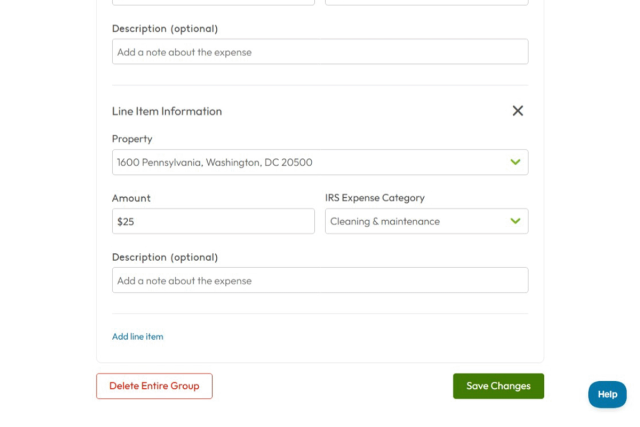
Say you went to a home improvement store and bought supplies for different purposes, or you paid the utility bills for two properties to the same company. Adding a line item to an expense allows you to further break down expenses and keep track of your spending for each tax category and property.
All you have to do is click “Add line item” at the bottom of the page, then input the information specific to each line item. There’s no limit to how many line items you can add, so get as specific as you can to make tax season easier.
Download Your Expenses
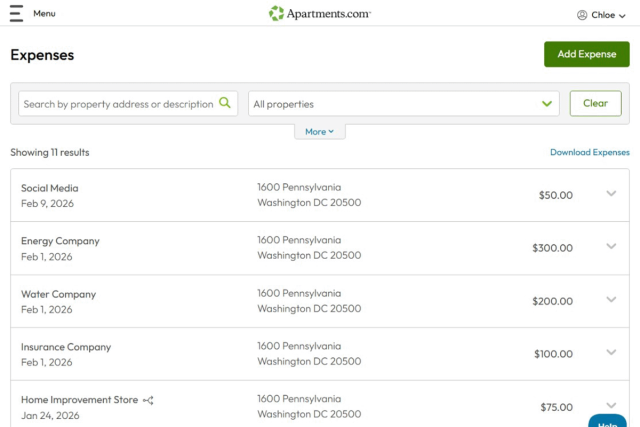
Review your spending and prepare for tax season by downloading your expenses. To get started, click on “Download Expenses” above your expense list.
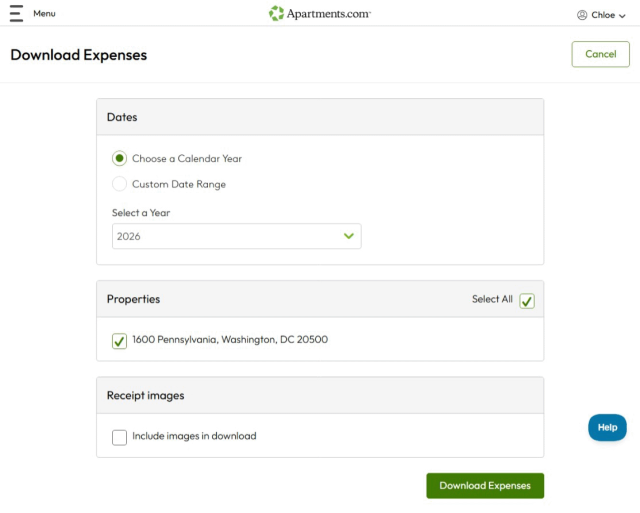
Select the date range and properties for which you want to download expenses. If you’re preparing for tax season, download your expenses for the calendar year. Then, click “Download Expenses.” This will export your expenses as a spreadsheet and a PDF.
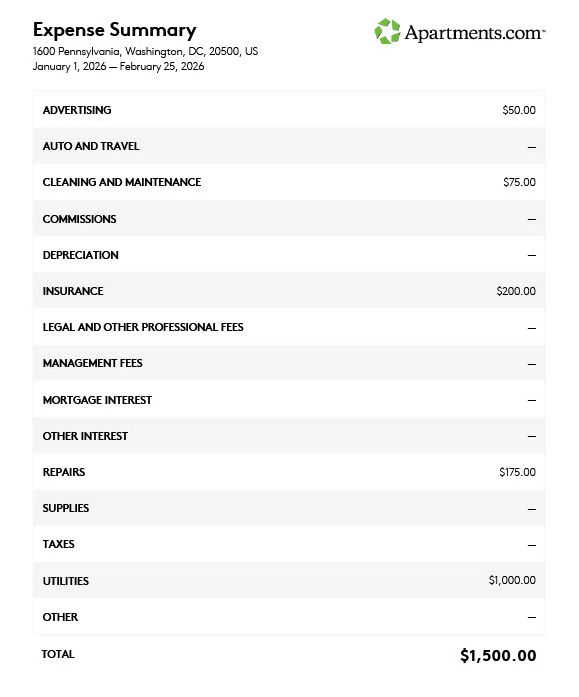
Preparing for tax season as an independent landlord can be daunting, but it doesn’t have to be difficult. Apartments.com makes it easy to keep your finances organized and maximize your return when you file your taxes each year.


